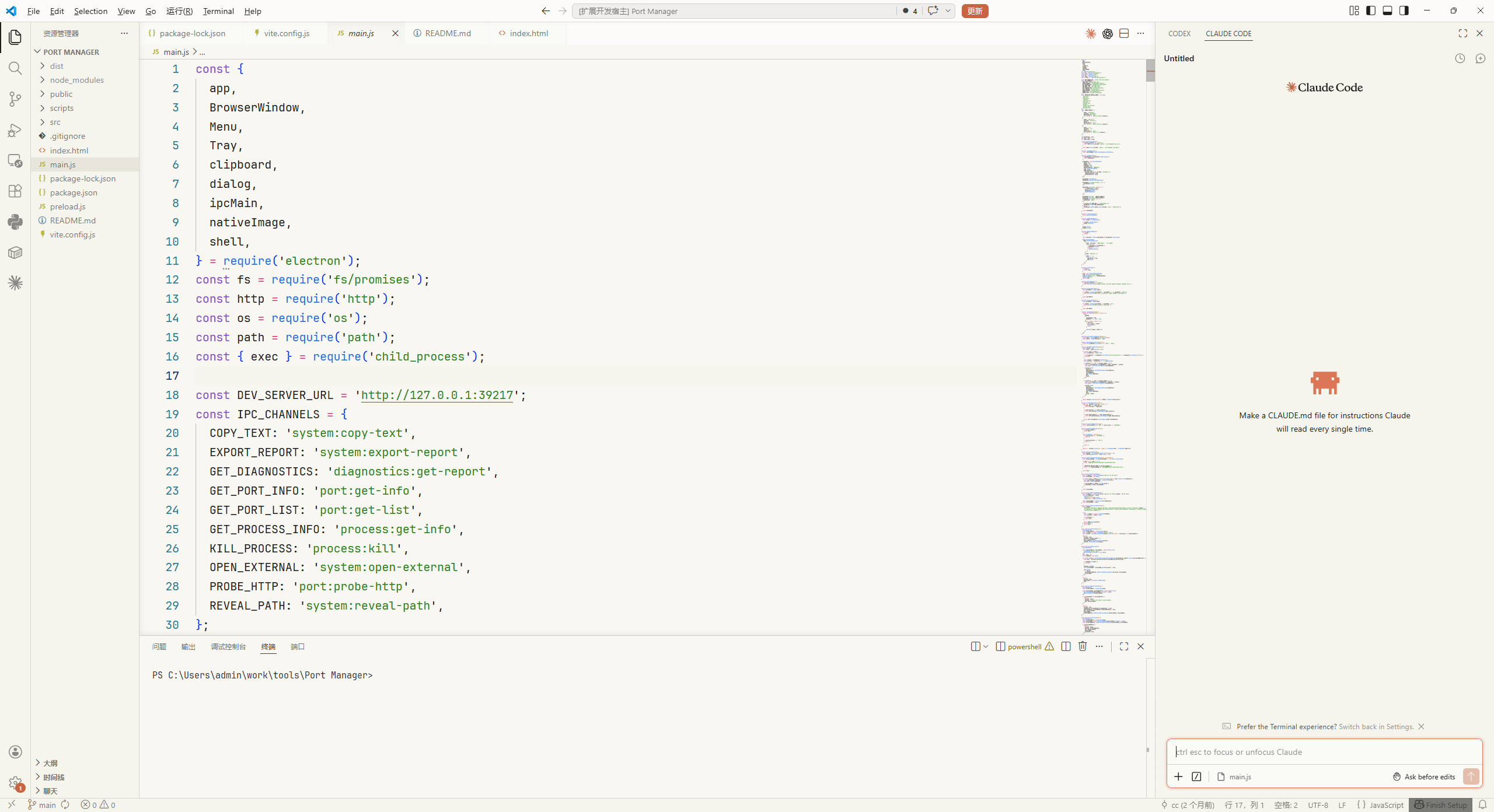
A Visual Studio Code theme inspired by the clean, warm, and focused interface of Claude AI.
This repository is independently maintained as clioc claude theme for ongoing personal customization and future development.
It is built on top of the original claude-light-theme work and continues forward as an independent theme project.
This theme is designed for those who appreciate a calm, minimalist, and readable environment. It uses a warm, off-white background and a carefully selected palette for syntax highlighting to reduce eye strain and improve code comprehension.
- Warm & Focused UI: A gentle, paper-like editor background (
#F8F7F2) that's easy on the eyes during long coding sessions. - Enhanced HTML/CSS Support: Comprehensive syntax highlighting for web development with proper color-coding for tags, attributes, properties, and values.
- Harmonious Highlighting: Syntax colors are carefully tuned to be clear and aesthetically pleasing, inspired by Claude's official palette.
- Consistent Design: Provides a cohesive look and feel across the entire VS Code workbench, from the editor to the terminal.
- Softer Workbench Surfaces: Title bar, tab background, input area, and chat/code blocks are slightly warmed and brightened to better match the overall Claude-style palette.
- Clearer Git Diff Removal Colors: Removed lines and overview markers use gentle red tints so deletions are easier to spot without feeling harsh.
- Clarity First: The color scheme prioritizes readability and semantic meaning, helping you understand your code at a glance.
- Editor Background:
#F8F7F2(Warm Off-White) - Workbench Surface:
#FCFBF9(Light Warm White) - Soft Panel / Input Background:
#FAFAF6(Soft Warm Tint) - Sidebar / Activity Bar:
#F5F4ED(Warm Beige) - Foreground:
#1F1E1D(Dark Brown-Gray) - Accent:
#1C6BBB(Claude Blue) - Emphasis:
#C96442(Terracotta Orange) - Code Block Border:
#E8E6DC(Soft Sand Border)
- Keywords:
#D73A83(Pink) - Types & Classes:
#8A46CE(Purple) - Functions:
#1F6FE4(Blue) - Numbers & Constants:
#2D8F8F(Cyan) - Parameters:
#B56613(Orange-Brown) - Strings:
#26831A(Green) - Comments:
#6F6F78(Gray)
- HTML Tags:
#D73A83(Pink) - HTML Attributes:
#1F6FE4(Blue) - HTML Values:
#26831A(Green) - CSS Properties:
#B56613(Orange-Brown) - CSS Values:
#2D8F8F(Cyan) - CSS Selectors:
#8A46CE(Purple)
- Title Bar / Editor Header:
#FCFBF9 - Inactive Tabs:
#FAFAF6 - Input / Chat Box:
#FAFAF6 - Code Blocks:
#FAFAF6 - Code Block Border:
#E8E6DC - Removed Diff Line:
#FF000014 - Removed Diff Text:
#FF000018 - Removed Diff Gutter:
#FF000010 - Removed Diff Overview:
#FF000040
- Open the Extensions sidebar in VS Code (
Ctrl+Shift+XorCmd+Shift+X). - Search for
clioc claude theme. - Click Install.
- Open the Command Palette (
Ctrl+Shift+PorCmd+Shift+P), typePreferences: Color Theme, and select clioc claude theme.
- Download the latest
.vsixfile from the releases page. - Open the Extensions sidebar in VS Code.
- Click the ... menu in the top-right corner, select Install from VSIX..., and choose the downloaded file.
To reproduce the full look shown in the screenshots, use the theme together with JetBrains Mono and the recommended editor settings below.
- Font: JetBrains Mono
- Why: It matches the author's preferred code reading experience and pairs well with the warm spacing and light contrast of this theme.
- Windows: Download the font archive, extract it, select the
.ttffiles, right-click, and choose Install for all users. - macOS: Download and extract the font, then open the font files in Font Book and click Install.
- Linux: Download and extract the font, copy the font files into your local fonts directory, then refresh the font cache.
Copy the following into your settings.json for a setup close to the screenshots in this repository:
{
  "workbench.colorTheme": "clioc claude theme",
  "editor.fontFamily": "JetBrains Mono, Consolas, monospace",
  "editor.fontSize": 18,
  "editor.lineHeight": 30,
  "window.zoomLevel": 0.5,
  "claudeCode.preferredLocation": "panel"
}If JetBrains Mono is not installed, VS Code will fall back to Consolas or another available monospace font. The theme colors will still work as expected, but the overall visual feel will not be an exact match.
You can override the theme's colors in your personal settings.json file.
Contributions are welcome. If you find any issues or have suggestions for improvements, feel free to open an issue or submit a pull request.
This theme is licensed under the MIT License.
This project continues from the original claude-light-theme created by Leo, with independent maintenance and ongoing customization under the clioc name.
这是一个受到 Claude AI 界面启发的 Visual Studio Code 主题,整体风格干净、温暖、专注。
这个仓库现在作为独立项目维护,主题名称为 clioc claude theme,用于后续的个性化调整和持续开发。
这个项目建立在原始 claude-light-theme 的基础之上,现在作为独立主题继续演进。
这个主题适合喜欢安静、简洁、易读代码环境的用户。它使用偏暖的浅色背景,并配合一套精心调整过的语法高亮配色,以降低长时间阅读代码时的疲劳感。
- 温暖且专注的界面:主编辑器背景使用柔和的纸张感米白色
#F8F7F2,长时间编码更舒适。 - 增强的 HTML/CSS 支持:为标签、属性、属性值、CSS 属性和选择器提供更清晰的颜色区分。
- 协调的语法高亮:整体高亮灵感来自 Claude 的配色风格,强调清晰和耐看。
- 统一的界面设计:从编辑器到终端、标签栏、侧边栏,保持一致的视觉语言。
- 更柔和的工作台表面:标题栏、标签栏、输入框、聊天区域和代码块背景都做了更暖更亮的处理。
- 更清晰的 Git 删除高亮:diff 中删除行的红色提示更容易识别,同时不过分刺眼。
- 以可读性优先:整体配色优先服务于语义理解和阅读效率。
- 编辑器背景:
#F8F7F2(暖米白) - 工作台亮面:
#FCFBF9(更亮的暖白) - 柔和面板 / 输入框背景:
#FAFAF6(浅暖白) - 侧边栏 / 活动栏背景:
#F5F4ED(暖米色) - 正文前景色:
#1F1E1D(深棕灰) - 强调蓝色:
#1C6BBB - 强调橙色:
#C96442 - 代码块边框:
#E8E6DC
- 关键字:
#D73A83 - 类型 / 类名:
#8A46CE - 函数名:
#1F6FE4 - 数字 / 常量:
#2D8F8F - 参数:
#B56613 - 字符串:
#26831A - 注释:
#6F6F78
- HTML 标签:
#D73A83 - HTML 属性名:
#1F6FE4 - HTML 属性值:
#26831A - CSS 属性名:
#B56613 - CSS 属性值:
#2D8F8F - CSS 选择器:
#8A46CE
- 标题栏 / 编辑器顶部区域:
#FCFBF9 - 未选中标签页背景:
#FAFAF6 - 输入框 / 对话框背景:
#FAFAF6 - 代码块背景:
#FAFAF6 - 代码块边框:
#E8E6DC - Diff 删除行背景:
#FF000014 - Diff 删除文本背景:
#FF000018 - Diff 左侧标记背景:
#FF000010 - Diff 概览标记颜色:
#FF000040
- 在 VS Code 中打开 扩展 面板(
Ctrl+Shift+X或Cmd+Shift+X)。 - 搜索
clioc claude theme。 - 点击 Install。
- 打开命令面板(
Ctrl+Shift+P或Cmd+Shift+P),输入Preferences: Color Theme,选择 clioc claude theme。
- 从 Releases 页面 下载最新的
.vsix文件。 - 打开 VS Code 的 扩展 面板。
- 点击右上角 ...,选择 Install from VSIX...,然后选择下载好的文件。
如果你希望尽量复刻截图中的整体视觉风格,建议将主题与 JetBrains Mono 字体以及下面的 VS Code 设置一起使用。
- 字体:JetBrains Mono
- 原因:这是作者当前主要使用的代码字体,和本主题的暖色、留白、行高搭配得比较自然。
- Windows:下载字体压缩包,解压后选中其中的
.ttf文件,右键选择 Install for all users。 - macOS:下载并解压字体文件后,用 Font Book 打开并安装。
- Linux:下载并解压字体文件,将字体复制到本地字体目录后刷新字体缓存。
将下面这段内容复制到你的 settings.json 中,可以更接近本仓库截图里的视觉效果:
{
"workbench.colorTheme": "clioc claude theme",
"editor.fontFamily": "JetBrains Mono, Consolas, monospace",
"editor.fontSize": 18,
"editor.lineHeight": 30,
"window.zoomLevel": 0.5,
"claudeCode.preferredLocation": "panel"
}如果机器上没有安装 JetBrains Mono,VS Code 会自动回退到 Consolas 或其他可用的等宽字体。主题颜色本身仍然会正常生效,但整体视觉观感不会和截图完全一致。
如果你想在这个主题基础上继续细调,也可以在自己的 settings.json 中覆盖颜色:
{
  "workbench.colorCustomizations": {
    "[clioc claude theme]": {
      "editor.background": "#FAFAFA",
      "activityBar.background": "#F5F3EE"
    }
  },
  "editor.tokenColorCustomizations": {
    "[clioc claude theme]": {
      "comments": "#888888",
      "strings": "#008000"
    }
  }
}如果你发现问题,或者有进一步优化建议,欢迎提交 issue 或 pull request。
本主题使用 MIT License。
这个项目延续自 Leo 创建的原始 claude-light-theme,现在以 clioc 名义独立维护,并继续进行个性化优化。
{
  "workbench.colorCustomizations": {
    "[clioc claude theme]": {
      "editor.background": "#FAFAFA",
      "activityBar.background": "#F5F3EE"
    }
  },
  "editor.tokenColorCustomizations": {
    "[clioc claude theme]": {
      "comments": "#888888",
      "strings": "#008000"
    }
  }
}